 Colorvia
HOW-TO
How to use
Your first map
Start by colouring one place you remember. You do not have to follow the order.
STEP 01
Getting started
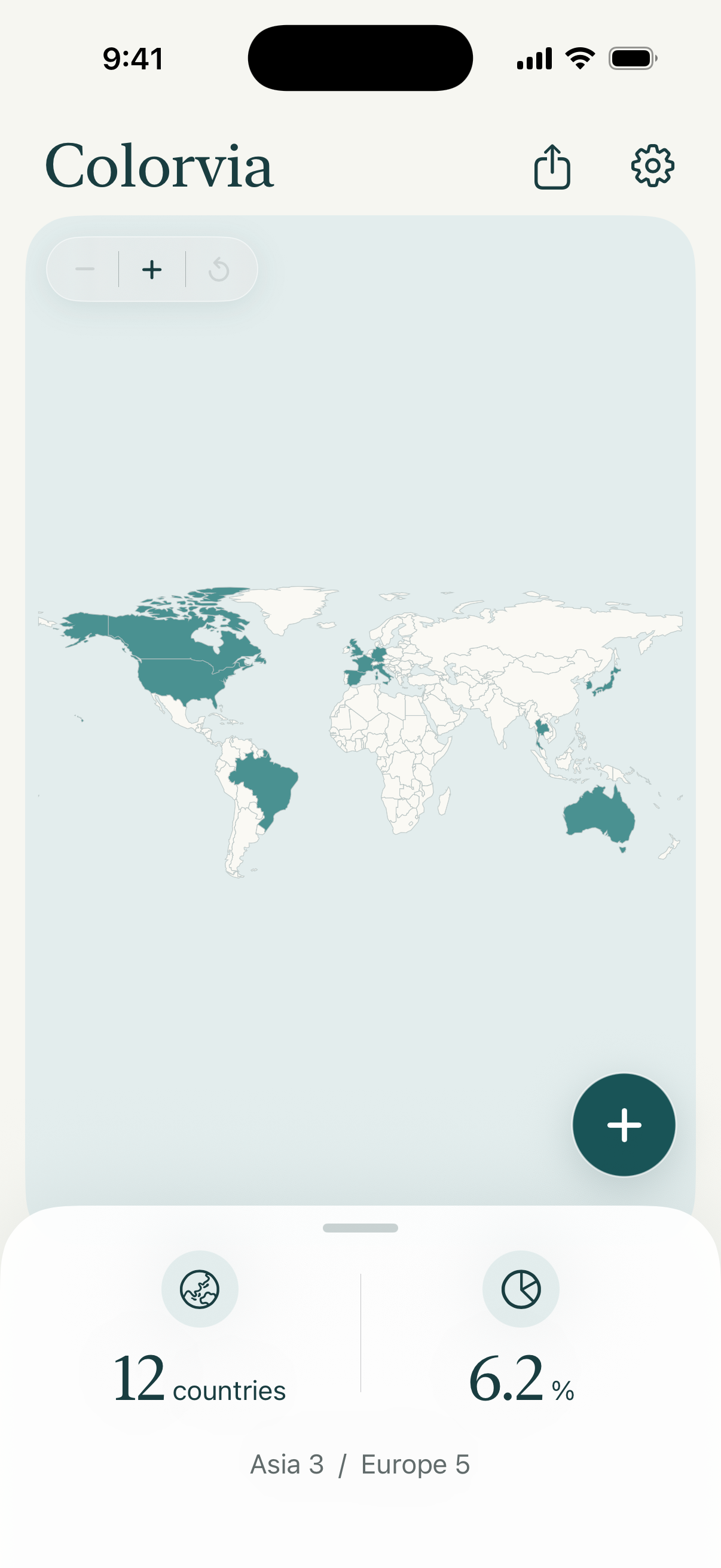
After a short onboarding, Home shows the world map.No account is required.
STEP 02
Add or remove countries
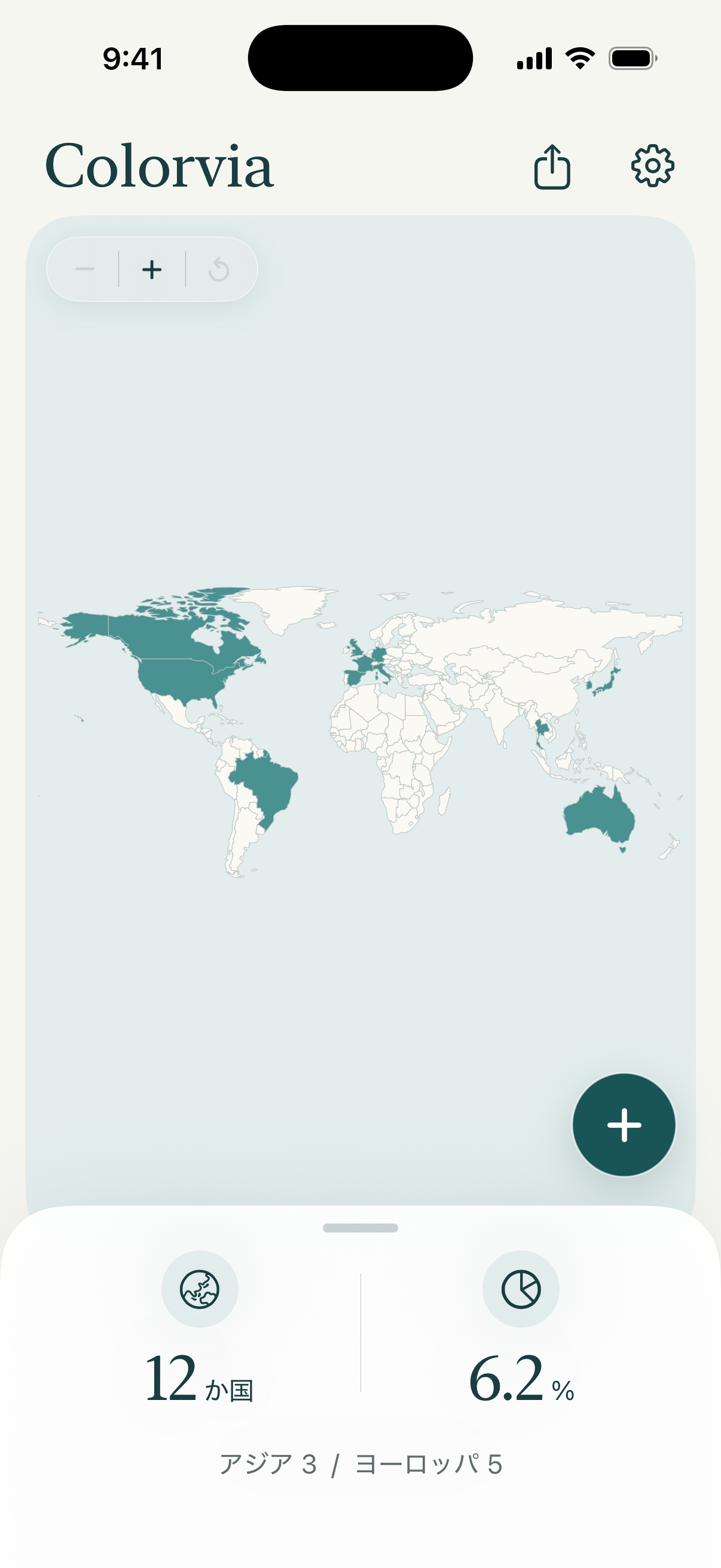
Tap + at the bottom-right of Home.Search by name or browse by region.Check visited countries and confirm.You cannot add countries by tapping the world map.
STEP 03
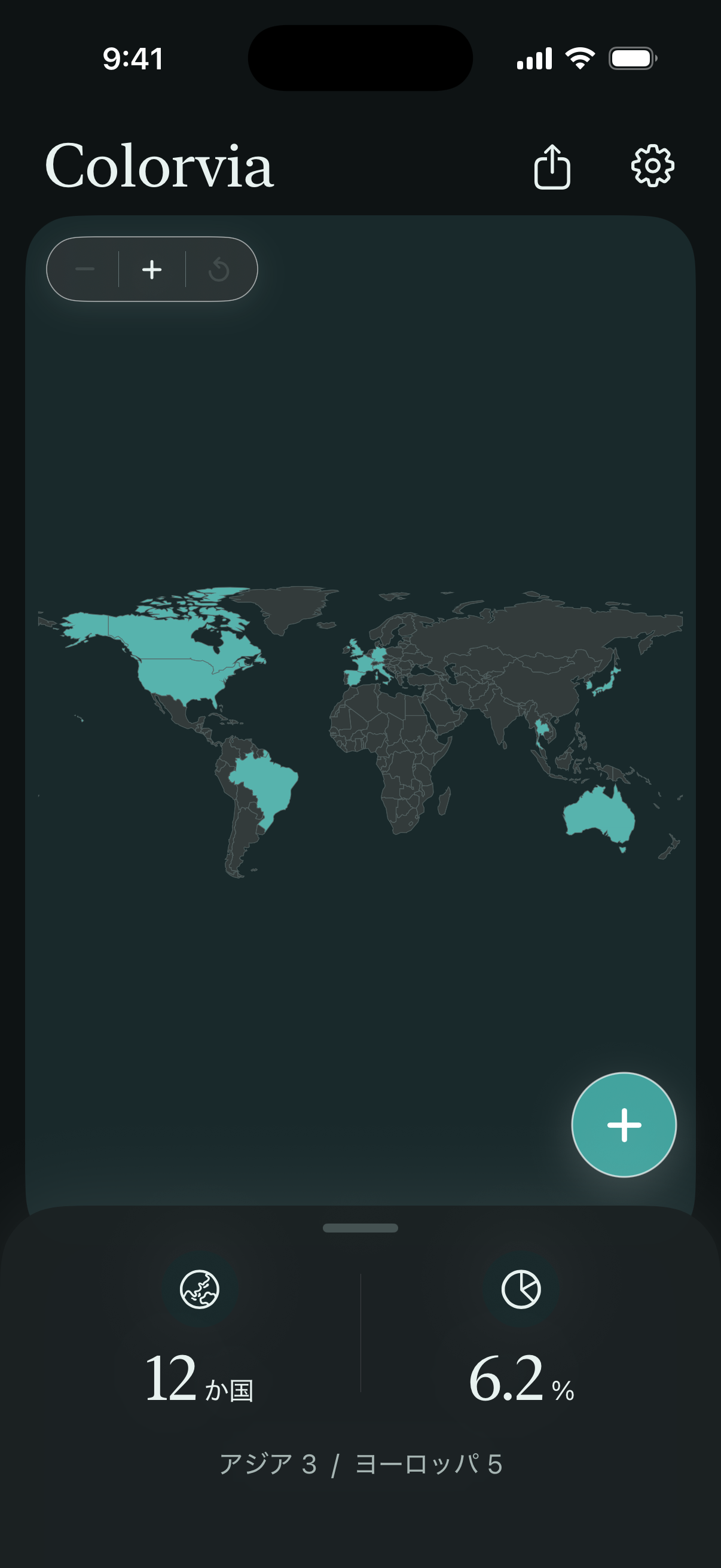
Explore the world map
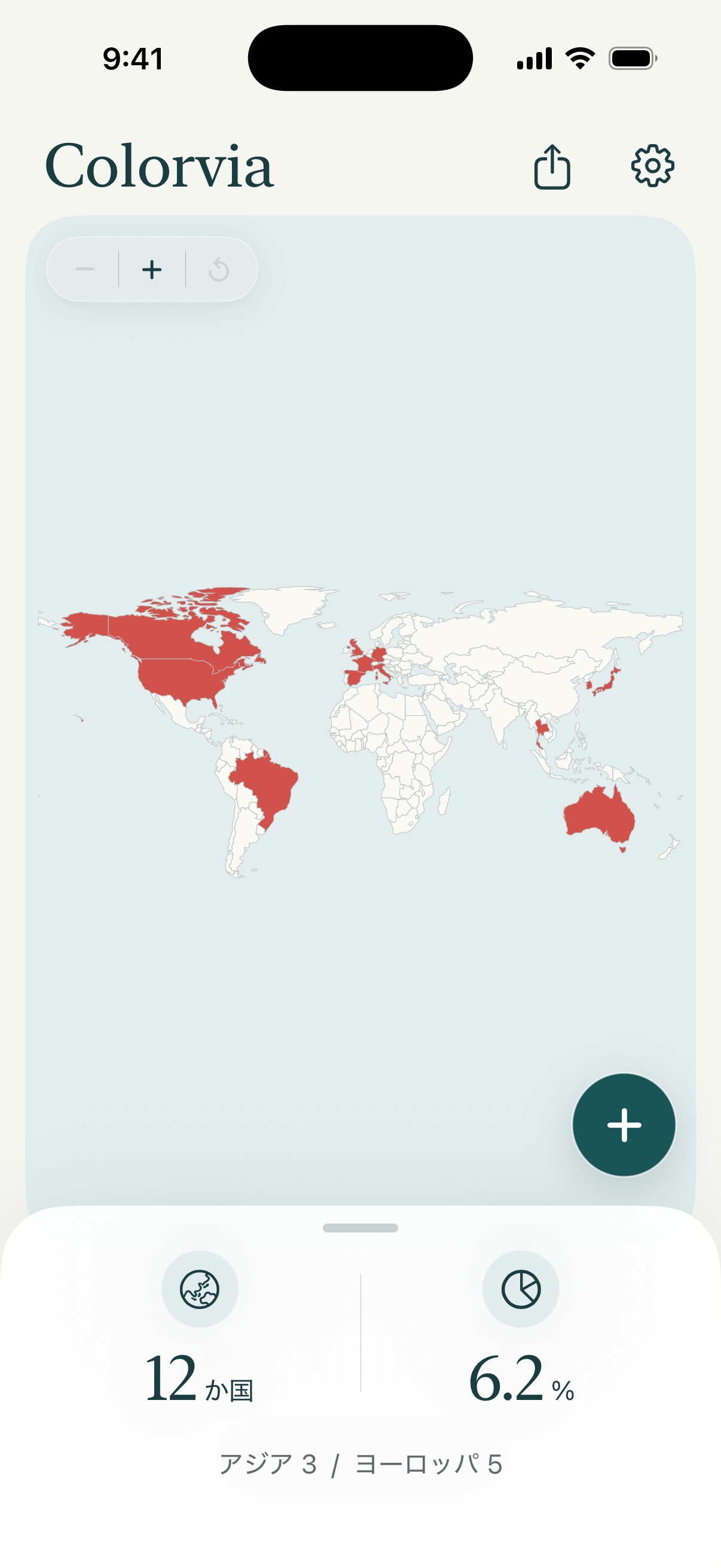
Pinch or use buttons to zoom.Drag to pan; reset returns to the default view.Change map colour in Settings.
STEP 04
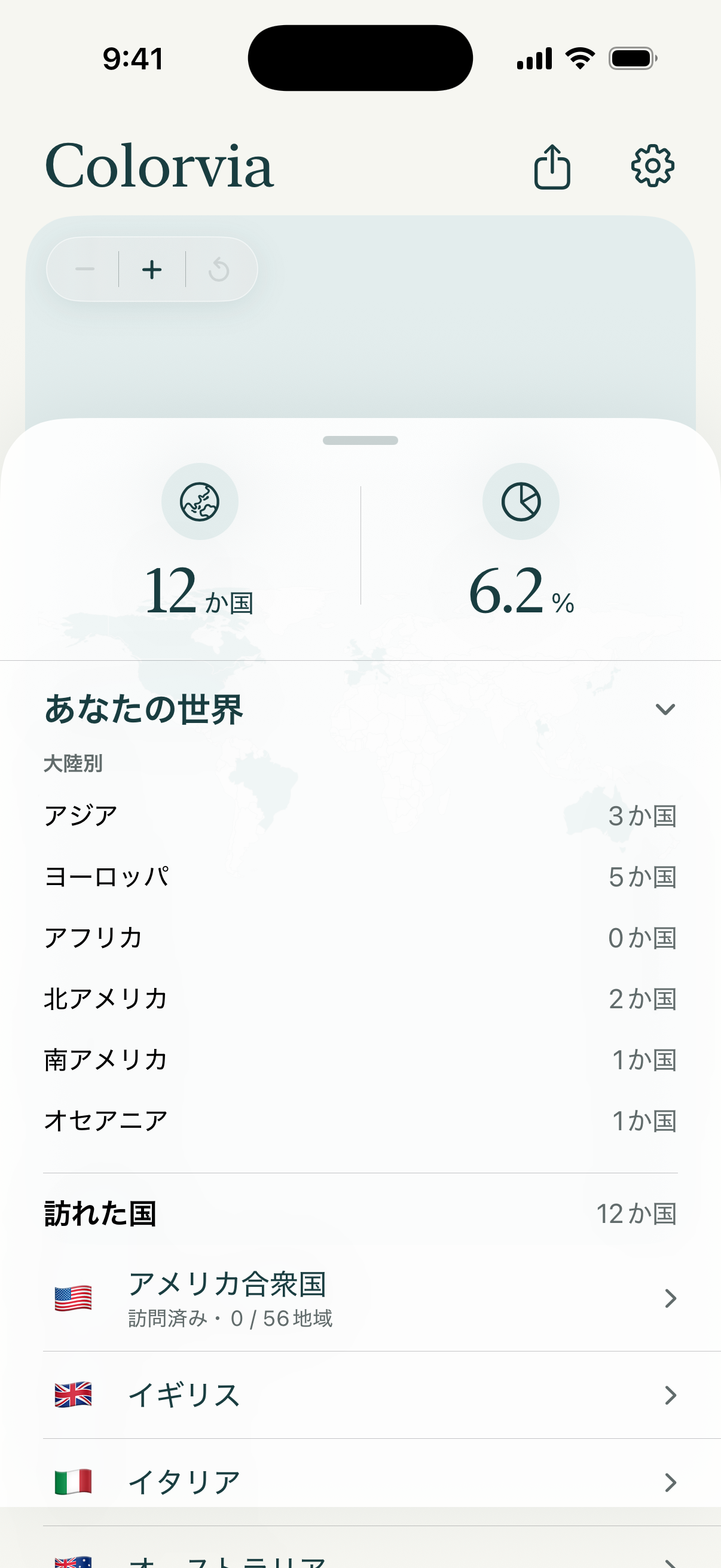
View statistics
Open the bottom sheet on Home.See visit count, world percentage, continents and visited lists.
STEP 05
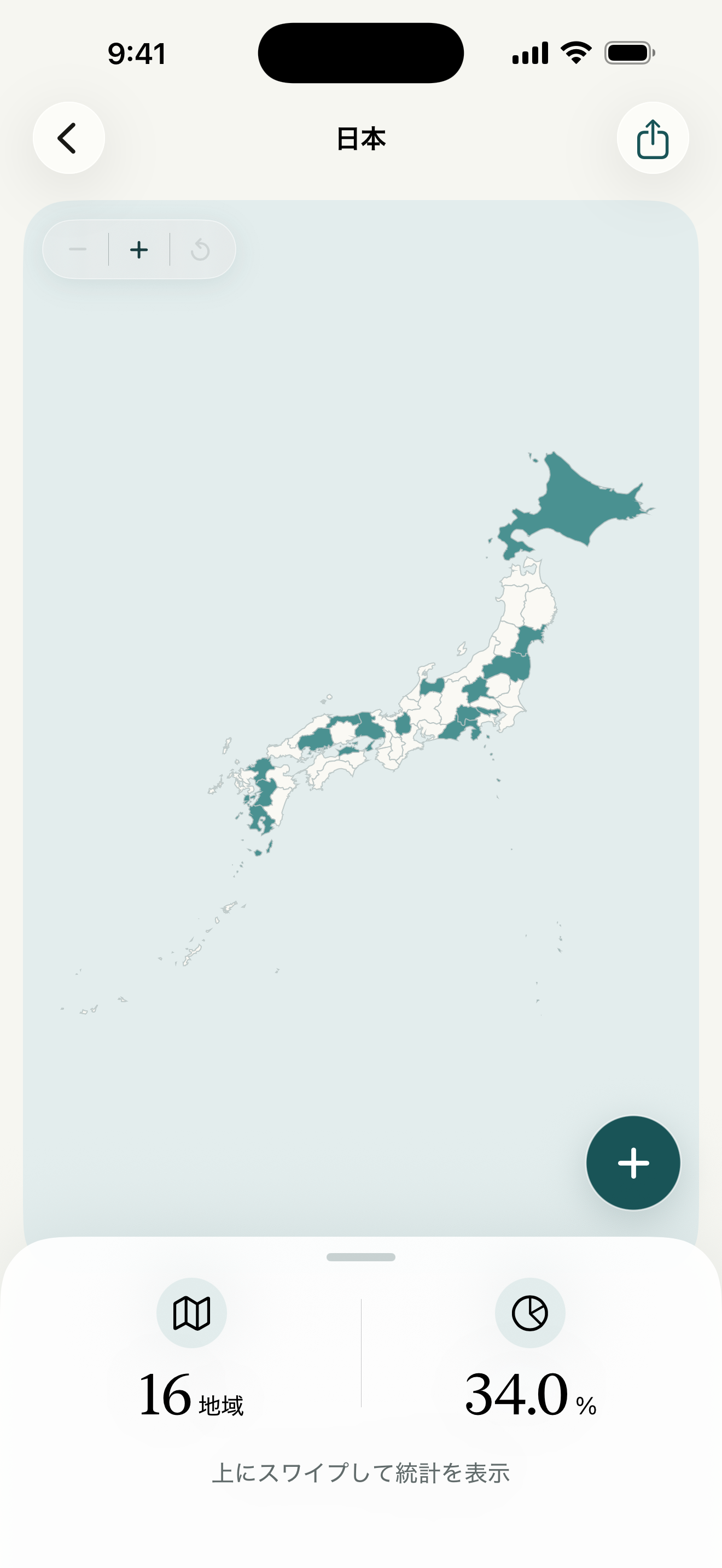
Record regions
Open a supported country and its regional map or list.Check prefectures, states, provinces and more.Use counts, rates and filters. Most supported countries can make a poster; Japan shares as text.
See all supported regionsSTEP 06
Place search
Search by city or place name inside regional views.Search indexes are bundled and work offline.
STEP 07
Move your data
Settings → Data management → export JSON.Import on a new device to restore countries and regions.Inconsistent parent countries can be marked visited or regions excluded.
STEP 08
Theme and map colour
Choose system, light or dark in Settings.Pick a map colour that suits you.


